Menu barMenu bar
| Menu | Items |
|---|---|
| Ilena | About, Settings, Quit. Quit leaves the editor for the Ilena home page. |
| Work | Close, Save, Export (PDF, Text (.txt), Markdown (.md)), History. |
| Edit | Undo, Redo, Cut, Copy, Paste, Delete, Select All, Mark. |
| Tools | Workspace, Dictionary. |
| Help | Keyboard Shortcuts, Terms of Use, Privacy Policy, AI Transparency, How to get support. Documentation and Tutorials are listed but greyed out. |
A menu item with a keyboard shortcut shows it beside its name. See Keyboard shortcuts.
ToolbarToolbar
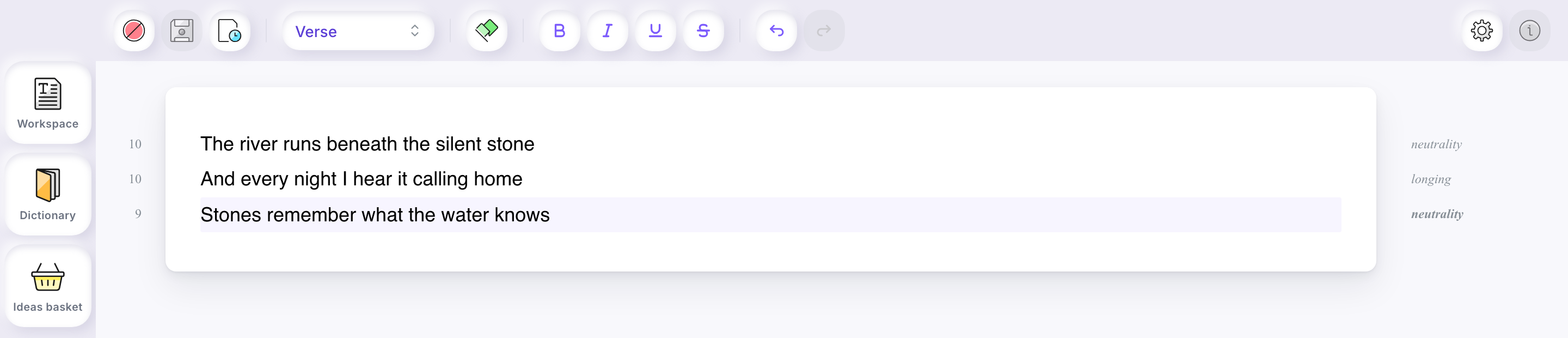
From left to right, the toolbar holds Close, Save and History, the Line type list, Mark, then Bold, Italic, Underline and Strikethrough, and finally Undo and Redo. At the far right sit Settings (the gear) and Documentation, which is greyed out. With no work open, every button except Settings is greyed out.
The four text styles apply to the text you have selected.
Tool paletteTool palette
The column on the left holds Workspace, Dictionary and Ideas basket. Each opens a drawer beside your text; select the same button again to close it. Esc leaves a drawer open. One drawer is open at a time: opening the workspace closes the dictionary.
Line typesLine types
Each line has a type, chosen in the Line type list of the toolbar for the line holding the cursor: Verse, Title, Indication or Legal. The first line of a new work is a Verse line.
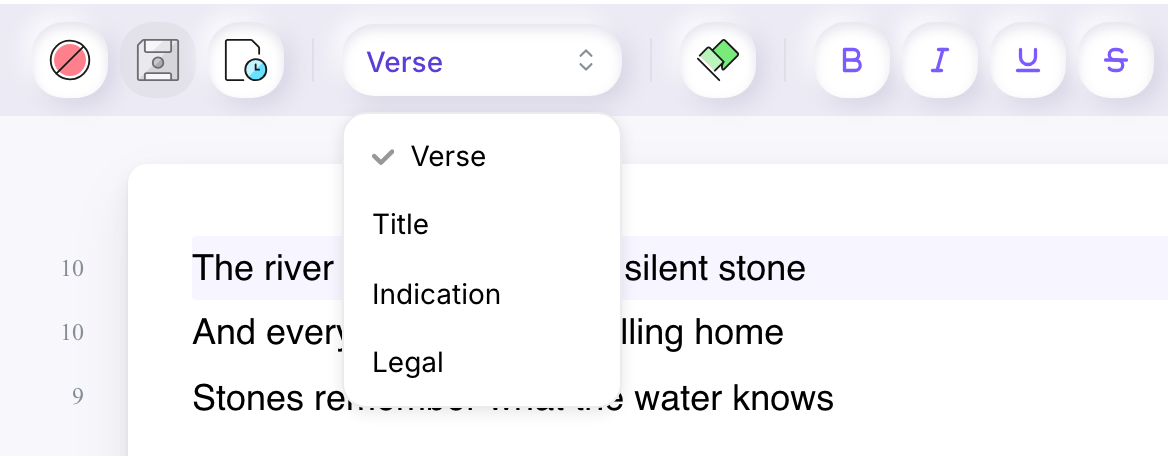
Only verse lines are analysed. A line changed to another type loses its feet count and its emotion, and it is no longer counted in the status bar’s words and verses. Changed back to Verse, it is analysed again.
The two guttersThe two gutters
A moment after you type on a verse line, Ilena shows two readings of it:
- in the left gutter, the line’s feet count;
- in the right gutter, one word naming the emotion Ilena reads in the line.
Both are Ilena’s reading of your line, not a verdict on it.
For an English work, that count is the syllables you actually pronounce when the line is spoken or sung — not the traditional metrical feet of English poetry (an iamb, a trochee and the rest), and not a count of stresses. “Shall I compare thee to a summer’s day?” reads as 10 for that reason, not 5. French and Spanish verse keep counting metric syllables by their own rules.
Correct a feet countCorrect a feet count
If the count does not match how you say the line, set your own:
- Double-click the count in the left gutter. It becomes a small field.
- Type a whole number, for example 7.
- Press Enter.

Your count is shown in another colour and in italics. Hovering it shows You set this count. Editing the line restores the calculated one. It is kept when you save and reopen the work.
Esc cancels. A value such as 0, 100 or letters is refused, and the count stays as it was. Editing the words of the line, or changing its type away from Verse and back, gives the line back its calculated count.
Status barStatus bar
Along the bottom of the window, with a work open, the status bar shows the number of words and of verses, for example Words: 21 · Verses: 3, and the name of the open work in the middle.
In Ilena → Settings, tab General, three switches choose what it shows:
- Show cursor position adds the cursor’s line and column, for example Ln 2, Col 39;
- Show word count shows the words and verses;
- Show feet stats adds the mean feet count and the range over your verse lines, for example Mean feet: 10 Range: 9–10.
On a new account, only the word count is on. Select Ok to apply your choice; Cancel keeps what was there. The other settings are described in Change the editor’s settings.
Mark textMark text
Marking highlights every occurrence of a piece of text in the open work.
- Select the text in the work.
- Select Mark in the toolbar, or Edit → Mark.
Every occurrence is highlighted, whatever its capitals and even inside a longer word: marking stone also highlights Stone and the start of Stones. Select Mark again to remove every highlight.
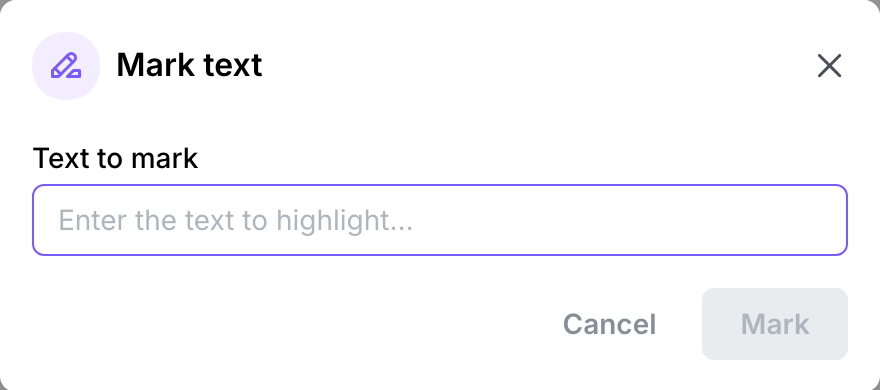
With nothing selected, Mark opens the Mark text dialog: type the text in Text to mark and select Mark. If the work does not contain it, Ilena shows No occurrences found.
Right-click menuRight-click menu
Right-clicking text you have selected in the work opens a menu with Copy, Cut, Delete, Mark, Dictionary and Add to basket. Dictionary looks the selection up (see Look up a word in the dictionary); Add to basket saves it (see Keep your ideas in the ideas basket).