Before you startBefore you start
You need an Ilena account whose sign-up is finished: your subscription active and your email address verified. Signing in is refused until the address is verified. To create your account, see Sign up and choose your plan.
Sign inSign in
- On the Ilena site, select Sign In in the header.
- Enter your email address and password, then select Sign in. If you signed up with Google, select the Google sign-in button instead.
If you no longer know your password, select Forgot your password? on the same page.
Open the editorOpen the editor
- Once you are signed in, the site header shows an Application menu. Open it and select Ilena.
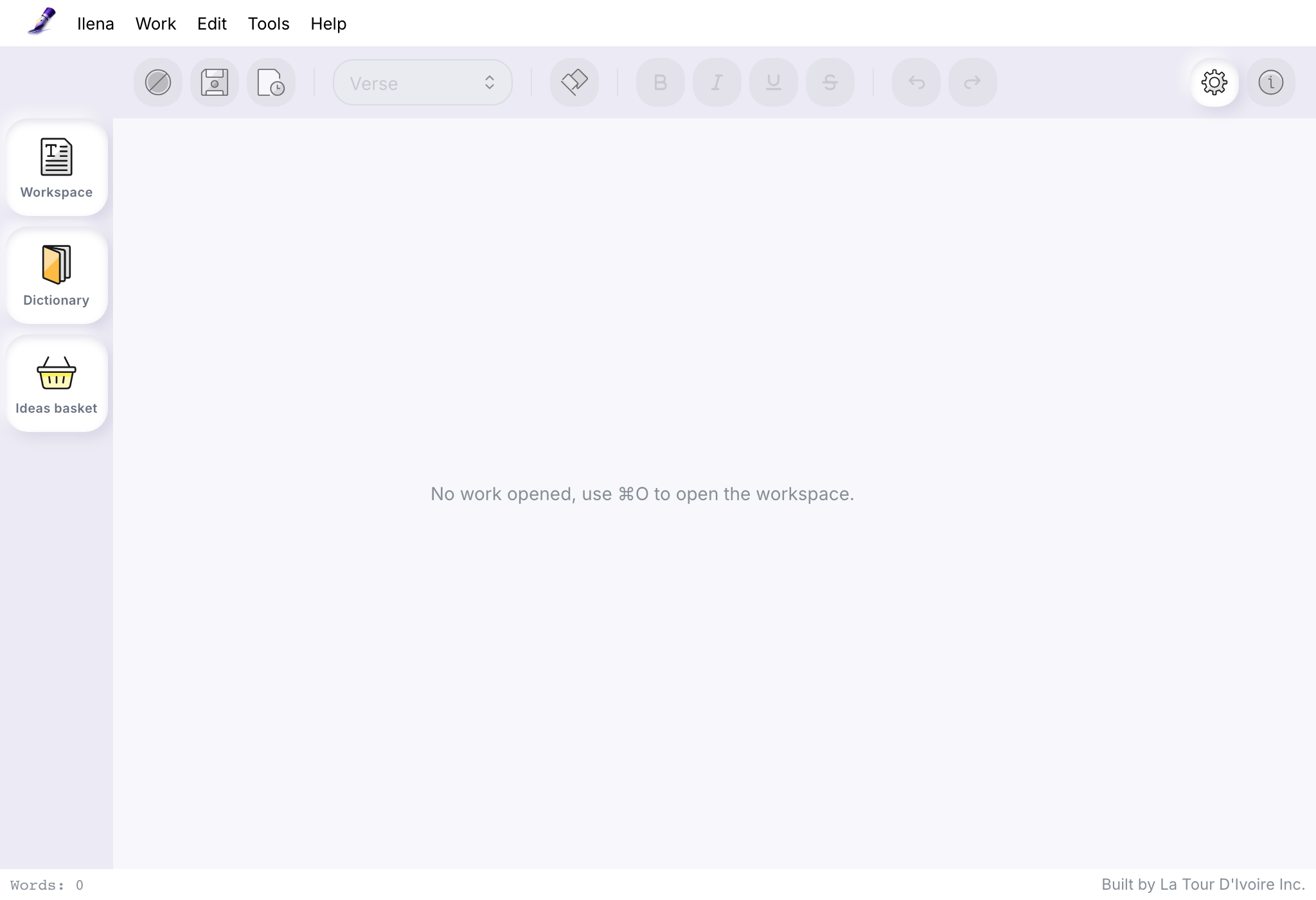
- The editor opens with no work open and the message No work opened, use ⌘O to open the workspace.
- Press ⌘ + O, or select Workspace in the column on the left. Your workspace opens on your author node, which carries your pen name.
Create your first workCreate your first work
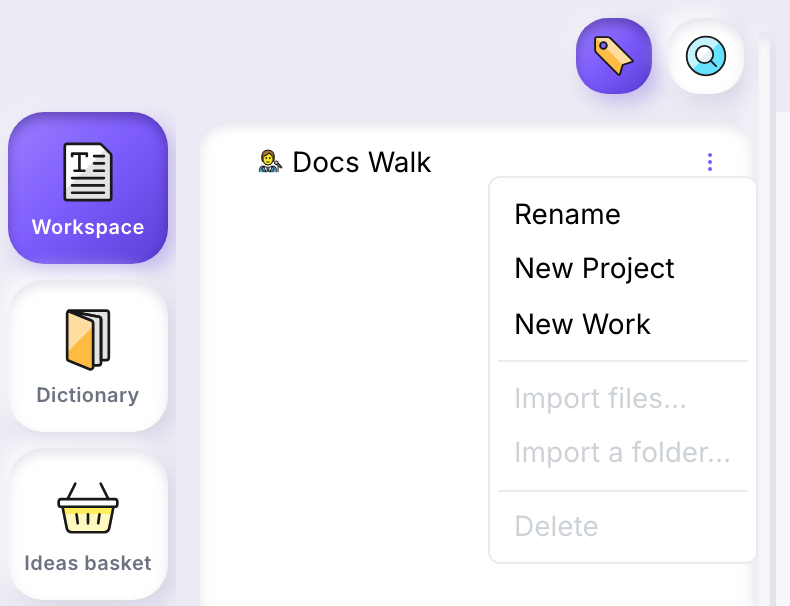
- Right-click your author node and select New Work.
- A name field opens in the tree. Type a title and press Enter.
The work opens in the editor and the workspace closes. The first line is a Verse line: click it and start writing.
Write your first lineWrite your first line
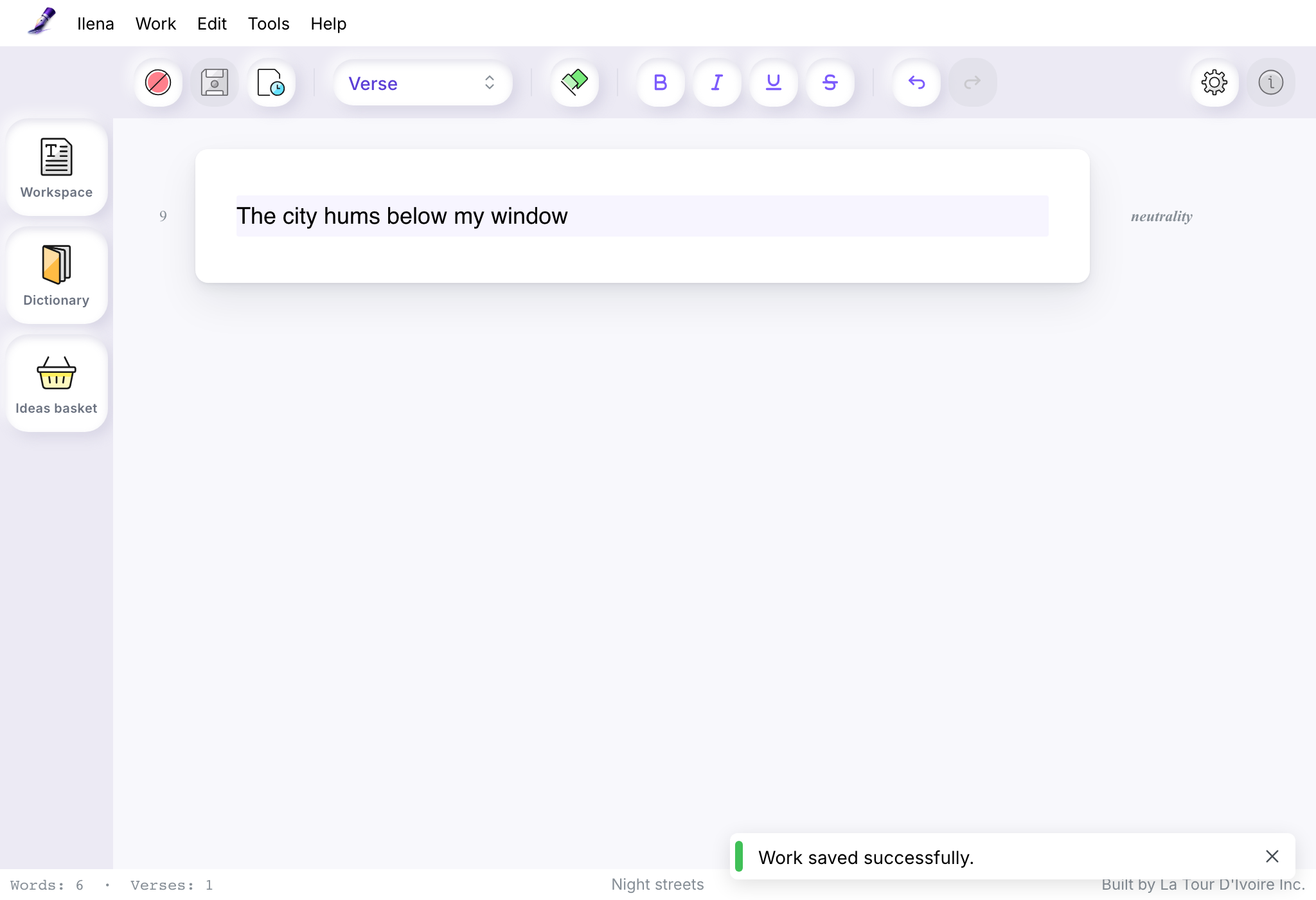
A moment after you type on a verse line, Ilena shows its reading of it: in the left gutter, the line’s feet count; in the right gutter, one word naming the emotion it reads in the line. The status bar at the bottom counts your words and verses, and shows the name of the work.
When automatic inspiration is on, Ilena also proposes a way to continue the line, after the cursor, in grey italics. Automatic inspiration is on unless you turned it off under Prepare your writing space when you signed up. Press Tab to add it to your line, or Esc to remove it: until you accept it, your line stays as you typed it.
What the gutters and the status bar show is described in Find your way around the editor; the suggestions, in Get line suggestions with Inspiration.
Save your workSave your work
Save in any of these three ways:
- press ⌘ + S;
- open the Work menu and select Save;
- select the save button in the toolbar.
The message Work saved successfully. confirms the save. While a work has unsaved changes, the browser tab title starts with *; the mark disappears once the work is saved.