Open the workspaceOpen the workspace
Press ⌘ + O, select Workspace in the column on the left, or open the Tools menu and select Workspace. Selecting Workspace in the column again closes it.
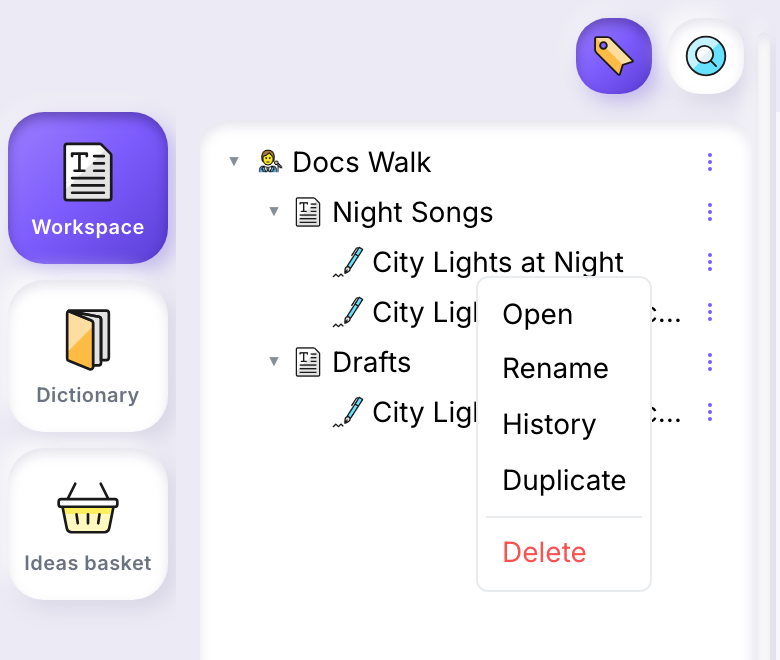
The tree starts with your author node, which carries your pen name. Right-click any row to see what you can do with it.
Create a project or a workCreate a project or a work
- Right-click your author node or a project, and select New Project or New Work.
- A name field opens in the tree. Type a name and press Enter, or press Escape to create nothing.
A new work opens in the editor straight away and the workspace closes. A new project appears in the tree and the workspace stays open.
Open a workOpen a work
Double-click the work in the tree, or right-click it and select Open. The work opens in the editor.
Rename a project or a workRename a project or a work
- Right-click the row and select Rename.
- Type the new name and press Enter. Escape keeps the old name.
Move a work into a projectMove a work into a project
Drag the work onto a project row and release it. The work moves inside that project.
Duplicate a workDuplicate a work
Right-click a work and select Duplicate. A new work named after the original followed by (copy) appears beside it, with the same content. From then on the two are independent: what you change and save in one does not reach the other. Only works can be duplicated.
Example: set a copy aside in another projectExample: set a copy aside in another project
The author node Docs Walk holds two projects, Night Songs and Drafts. Night Songs holds the work City Lights at Night, with two lines: Neon signs are blinking slow and Taxis hum where rivers flow.
- Right-click City Lights at Night and select Duplicate. City Lights at Night (copy) appears beside it, with the same two lines.
- Drag the copy onto Drafts and release it. The copy moves into Drafts.
- Docs Walk
- Night Songs, a project
- City Lights at Night, a work
- Drafts, a project
- City Lights at Night (copy), a work
- Night Songs, a project
Night Songs keeps the original and Drafts holds the copy. Words added to the copy and saved did not reach the original.
Delete a project or a workDelete a project or a work
- Right-click the row and select Delete.
- The Confirm delete dialog asks Delete name? This cannot be undone. Select Delete, or Cancel to delete nothing.
A work can be deleted, including the one you have open: it closes and the editor shows no work. A project can be deleted only once it is empty: while it holds a work or another project, its Delete is greyed out. Your author node cannot be deleted.
See and edit detailsSee and edit details
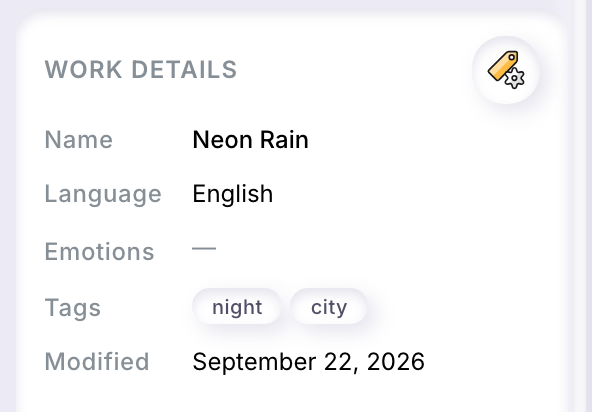
Click a row once to select it: its details appear below the tree. The left one of the two round buttons at the top of the workspace, Toggle details, hides them and shows them again. To change details, select the round button in the corner of the card, Edit details, make your changes, then select Save or Cancel.
- Work details
- Name, Language, Emotions, Tags and Modified, the date of the last save. You can edit the name, the language (English, French or Spanish) and the tags: type a tag and press Enter. You do not edit the emotions: Ilena fills them in from the text of the work when you save it. A work saved with the two lines Neon signs are blinking slow and Taxis hum where rivers flow, for example, showed serenity.
- Project details
- Name, About and Tags; an empty field shows a dash. You can edit About and Tags. To change the name, use Rename.
- Author
- Your pen name and a short introduction written from your answers to four questions. Edit details opens About you, where you can revise those answers: What brings you here?, What place does writing hold for you?, What themes do you like to explore in your writing? and How would you describe your style?