How versions are madeHow versions are made
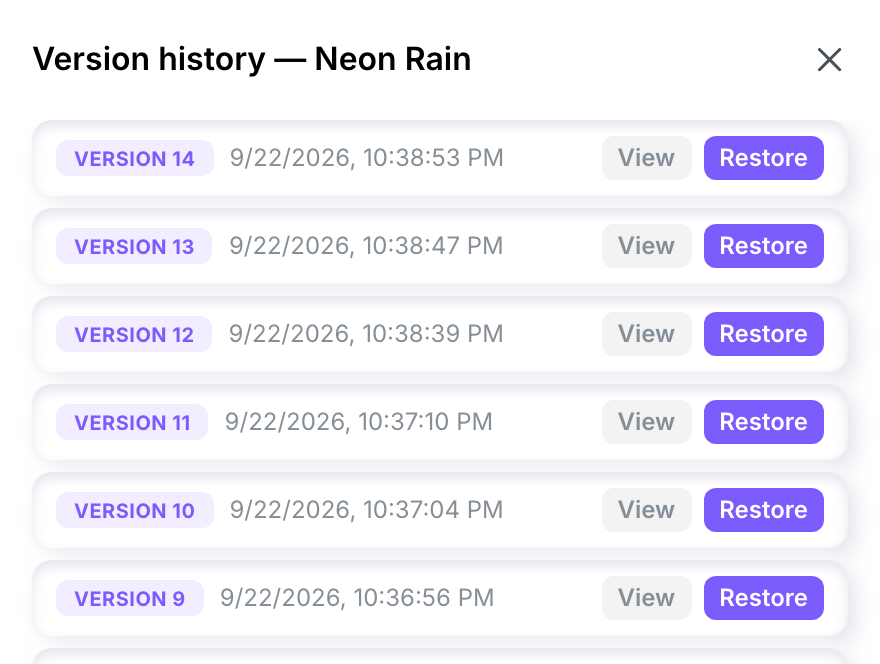
Creating a work makes Version 1, which is empty. Each save adds a version, and so does each restore. The history lists them newest first, each with its date and time.
Open the historyOpen the history
The Version history panel opens from any of these:
- the Work menu, History;
- the History button in the toolbar, a page with a clock;
- ⌃ + ⌘ + H;
- a right-click on a work in the workspace, then History: this one works on a work you have not opened.
Each version has a View button and a Restore button.
Read a version, or compare twoRead a version, or compare two
- Select View on a version. Its text appears above the list, under Version content. An empty version reads This version has no content.
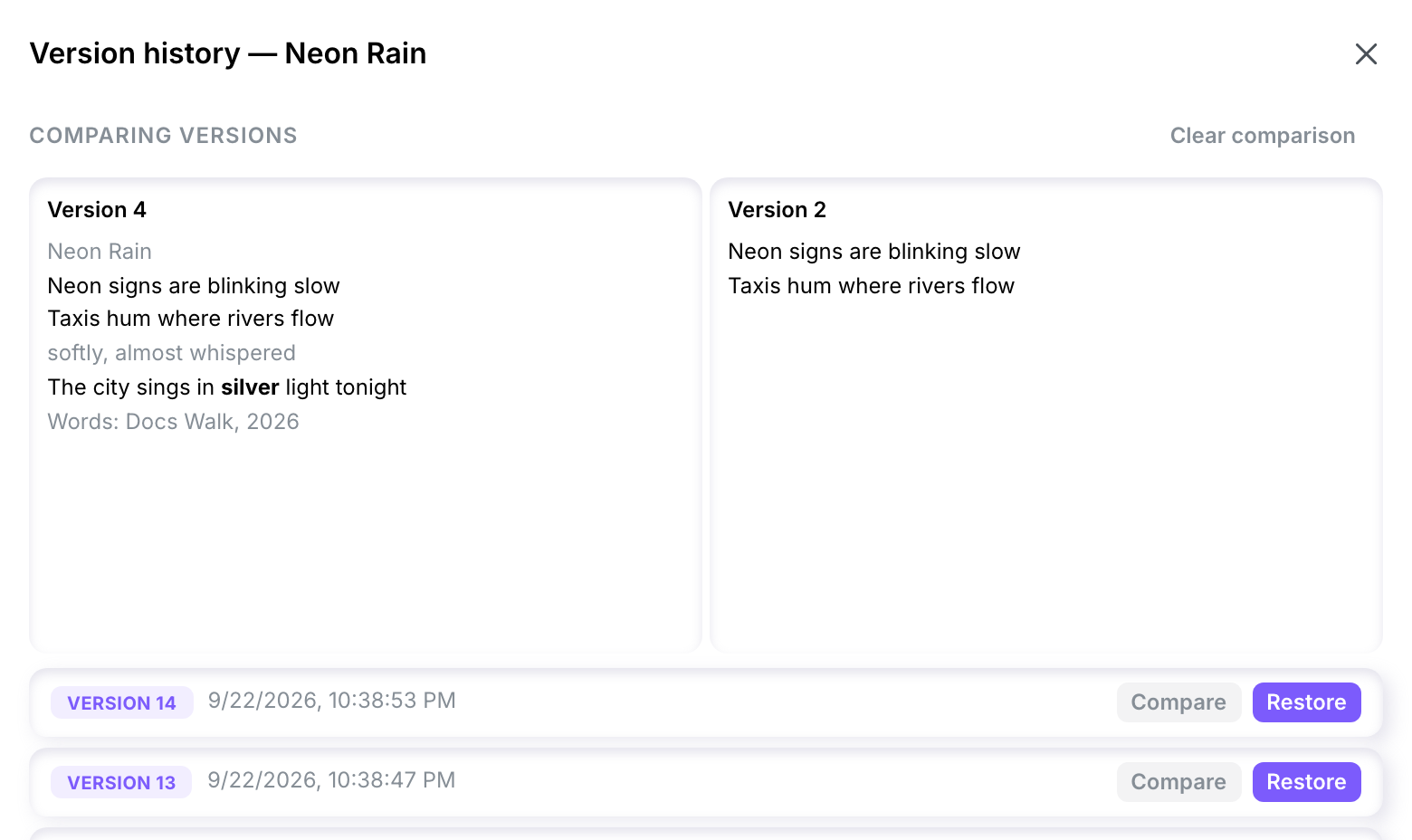
- On another version, select Compare. The two texts appear side by side under Comparing versions, each labelled with its number.
If you choose a third version, it replaces the first of the two you chose. Remove takes a version off the screen, and Clear comparison goes back to the plain list.
Example: what a work gained between two savesExample: what a work gained between two saves
For the work Neon Rain, Version 2 held two lines. Compared with it, Version 4 shows the title, the same two lines, an indication, a new line and the credit line:
| Version 4 | Version 2 |
|---|---|
| Neon Rain Neon signs are blinking slow Taxis hum where rivers flow softly, almost whispered The city sings in silver light tonight Words: Docs Walk, 2026 | Neon signs are blinking slow Taxis hum where rivers flow |
Both texts appear whole, and no line is marked as changed: you read the difference by setting one beside the other.
Restore a versionRestore a version
Select Restore on the version you want back. The panel closes and the editor shows that text. The message Version restored as a new version. confirms it: the restored text is now the newest version, and every earlier version stays in the list. To undo a restore, restore the version that was newest before it.