Search your worksSearch your works
- Open the workspace with ⌘ + O.
- At the top of the workspace, select the magnifying-glass button, Find work. The Find Work dialog opens.
- Fill in the fields you need, then select Find.
A field left empty is not used. With every field empty, Find lists all your works. When nothing matches, the dialog shows No results found.
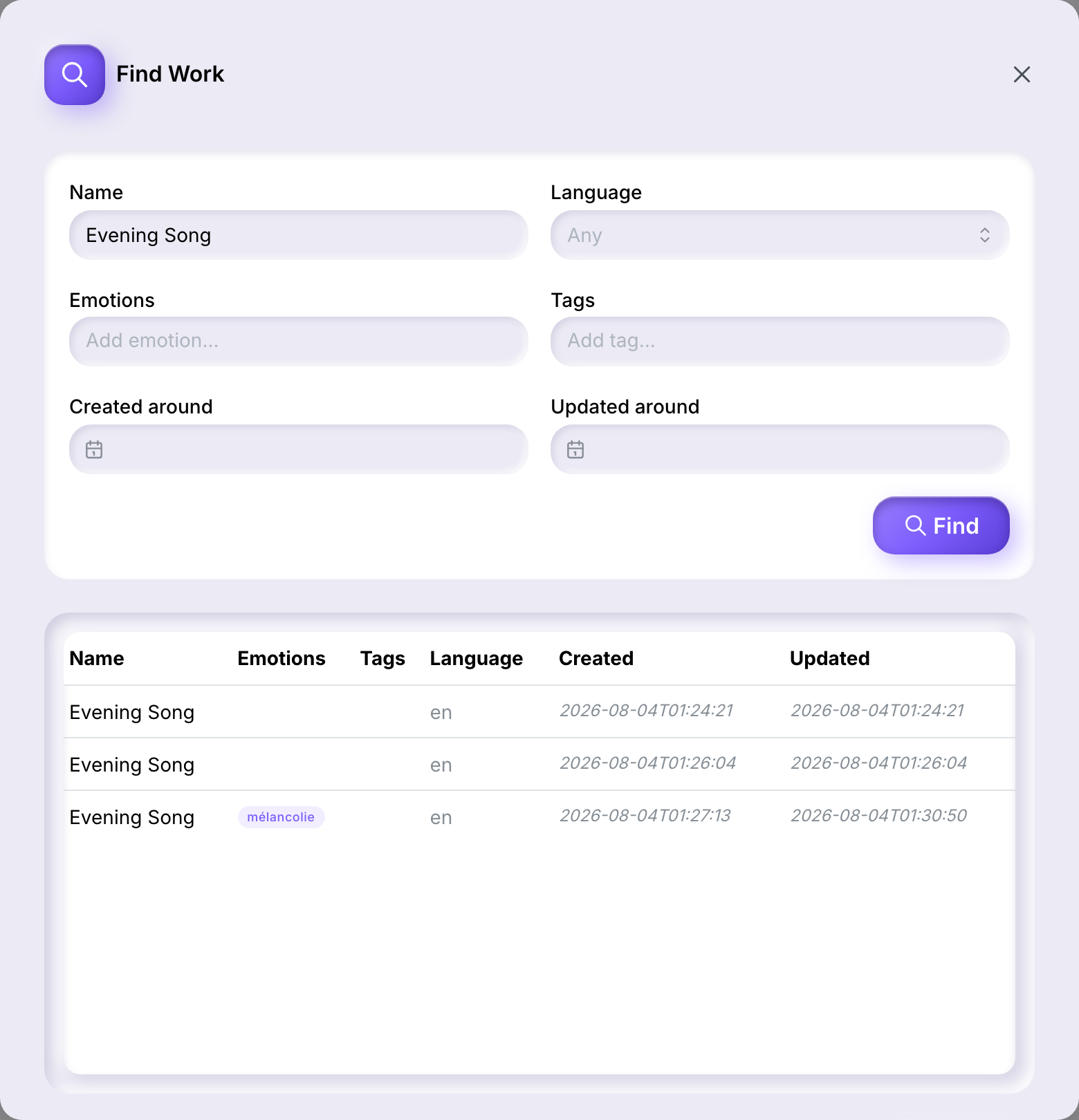
The search fieldsThe search fields
- Name
- Works whose name contains what you type, capitals or not. The name searched is the Name shown in Work details.
- Language
- English, French or Spanish. Leave the field on Any to include every language.
- Emotions
- Type an emotion and press Enter. Capitals do not matter.
- Tags
- Type a tag and press Enter; add as many as you like. A work matches when it carries at least one of them.
- Created around, Updated around
- Pick a date. A work matches when it was created, or last updated, within 14 days before or after that date.
Example: find the songs tagged “night”Example: find the songs tagged “night”
In Tags, type night, press Enter, then select Find. The search returned one work:
| Name | Emotions | Tags | Language | Created | Updated |
|---|---|---|---|---|---|
| Neon Rain | serenity | night, city | en | 2026-09-22T21:53:37 | 2026-09-22T22:00:59 |
The dates and the language are copied here exactly as Find work shows them today: a date and time such as 2026-09-22T21:53:37, and a language code such as en rather than the name of the language.
Adding a second tag, zzz, which no work carries, still found Neon Rain: one of the tags is enough. In the workspace tree, this work’s row reads City Lights at Night; a search on the name neon found it too, because the name searched is the one in Work details.
Open a resultOpen a result
The results list each work with its Name, Emotions, Tags, Language, and the date and time it was Created and Updated.
- Select a row. Open stays greyed out until a row is selected.
- Select Open, or double-click the row instead.
The work opens in the editor and the dialog closes.