What a basket holdsWhat a basket holds
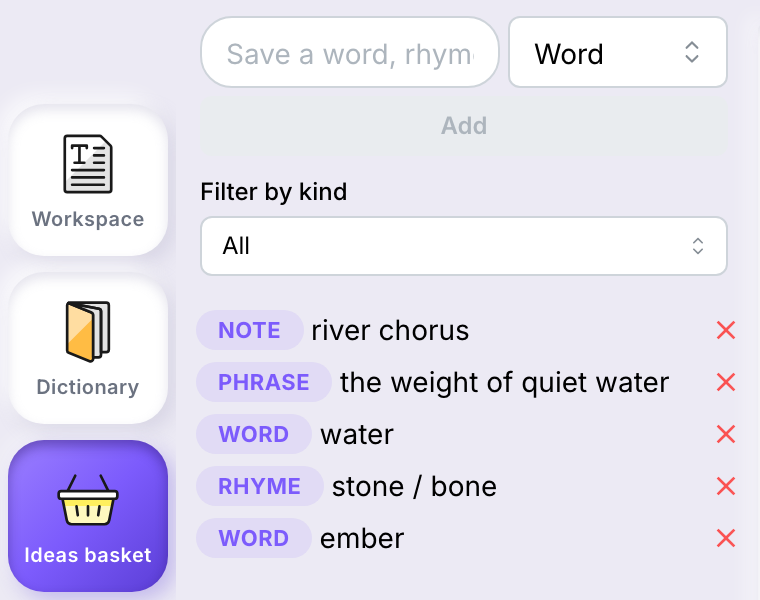
The kind is yours to choose: it labels the idea and lets you filter the basket later.
Add an ideaAdd an idea
- Select Ideas basket in the tool palette on the left. The basket has no menu entry and no keyboard shortcut.
- Type your idea in Save a word, rhyme or phrase….
- In Kind, choose Word, Rhyme, Phrase, Idiom or Note. Word is chosen by default, and the kind you pick stays chosen for your next idea.
- Select Add, or press Enter.
The idea appears at the top of the list, under the name of its kind. Add stays greyed out while the field is empty.
Add an idea from your workAdd an idea from your work
- Select the text in your work.
- Right-click it and select Add to basket. The basket opens with your selection in the field.
- Choose a kind, change the text if you wish, and select Add.
Filter and delete ideasFilter and delete ideas
- In Filter by kind, choose a kind to see only those ideas, or All to see them all. When no idea matches, the basket shows Your basket is empty.
- Select Delete idea next to an idea to delete it.
Close the basketClose the basket
Select Ideas basket in the palette again. Esc leaves the basket open.