Workspace
The workspace drawer — opened with Cmd/Ctrl+O, or by clicking Workspace in the left tool palette — is where you organize your works and get to them.
The treeDirect link to The tree
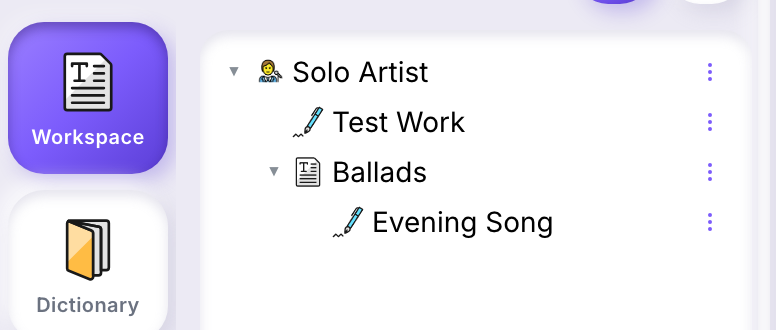
At the top of the tree is your author node, named after you. Under it you create:
- Projects — folders. Use them to group works by album, era, client, or any way that fits how you think. A project can hold works and other projects, nested as deep as you need.
- Works — the lyric documents you write in the editor. A work is always a leaf; it can't hold anything else.
Creating a project or a workDirect link to Creating a project or a work
- Right-click a node that can hold children — your author node, or any project.
- Choose New Project or New Work.
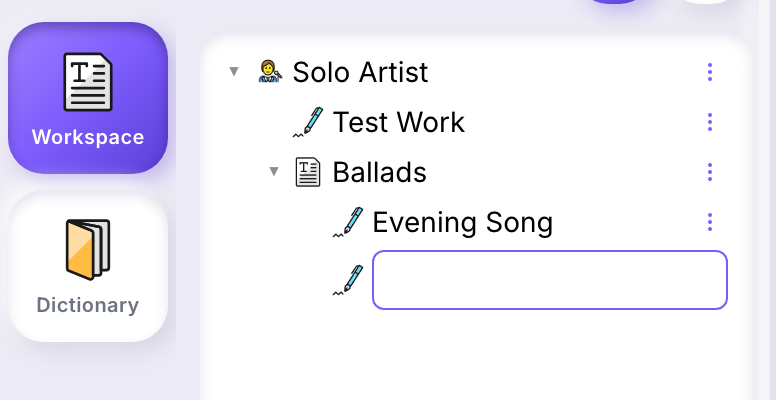
A new row opens right in the tree, ready to name.
- Type a name.
- Press Enter to confirm, or Escape to cancel.
Confirming the name of a work opens it in the editor straight away and closes the workspace — you do not have to find it in the tree and open it. A new project behaves differently: it stays a row, and the workspace stays open, because there is nothing yet to write in.
There's no dialog and no language picker at this step — a new work takes the language your interface is set to. To change its language, tags, or name afterward, see work details below.
RenamingDirect link to Renaming
Right-click a node and choose Rename. The row opens for editing the same way it does when you create one — type the new name and press Enter, or Escape to cancel. If the rename fails (for example, a network error), the old name is restored.
DeletingDirect link to Deleting
Right-click a node and choose Delete, then confirm in the dialog that appears — deleting cannot be undone.
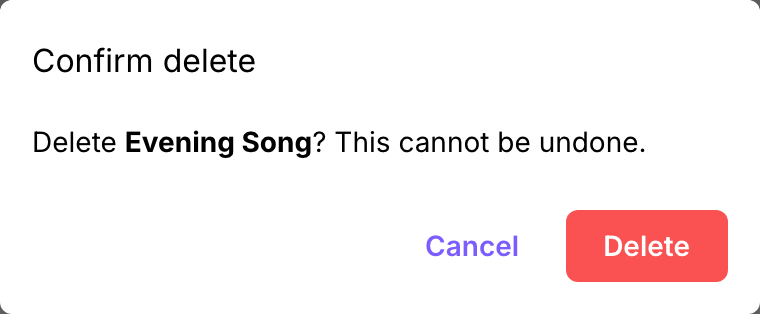
A few rules, visible directly in the menu — Delete is greyed out when it doesn't apply:
- A work can always be deleted.
- A project must be empty first — its Delete is disabled while it still holds anything.
- Your author node — the root of your tree — can't be deleted at all.
Opening a workDirect link to Opening a work
Double-click a work in the tree. Its content loads into the editor.
Node menusDirect link to Node menus
What you see on right-click depends on the node:
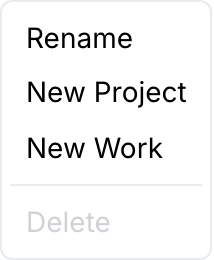
- Your author node: Rename, New Project, New Work, Delete (always disabled).
- A project: New Work, New Project, Rename, Delete (disabled while it has children).
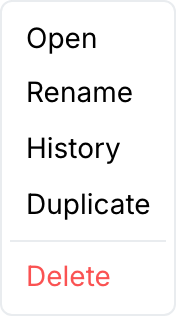
- A work: Open, Rename, History, Duplicate, Delete. History opens the version-comparison drawer for that work — see History & Versions. Duplicate makes an independent copy — see Duplicating below.
DuplicatingDirect link to Duplicating
Right-click a work and choose Duplicate. A new work appears in the tree named "‹name› (copy)", holding its own copy of the original's content at the moment you duplicated it. From then on the two are unrelated: editing and saving one leaves the other exactly as it was. Duplicate isn't offered on projects or on your author node — only on works.
Work detailsDirect link to Work details
Click once on a work (rather than double-clicking) to select it without opening it. A Work details card appears below the tree:
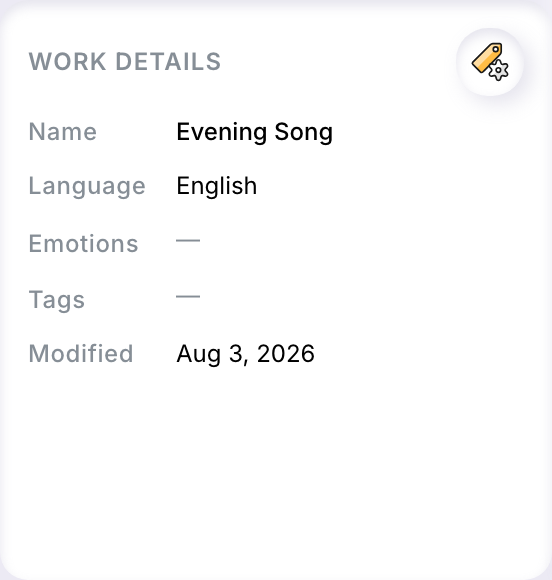
- Name, Language, Tags — set when the work was created, editable afterward.
- Emotions — shown as chips; they come from analyzing the work's content and are recalculated on save, not typed in directly.
- Modified — the date of the work's last save.
Selecting a project or your author node shows a different card for each — see Project details and Author details below.
Loading a work's details can take a moment, especially if it isn't the one currently open in the editor. If it fails to load, a notification says so; click away and reselect the work to try again.
Editing detailsDirect link to Editing details
Click the edit icon in the corner of the card to turn it into a form:
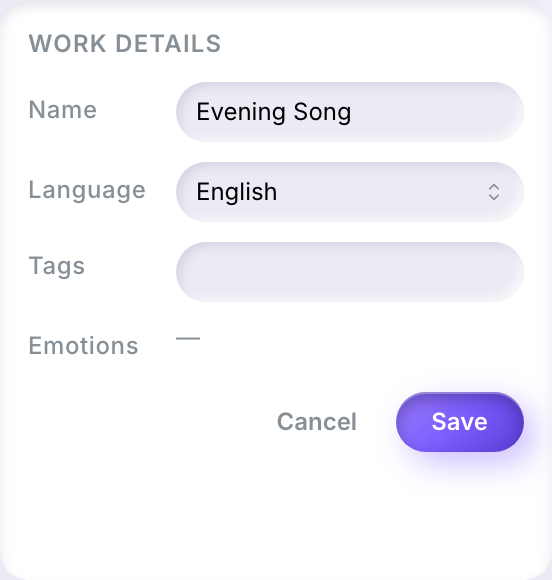
Change the Name, Language (English, French, or Spanish), or Tags, then Save or Cancel. Emotions appear in the form too, below Tags, but they cannot be edited there: Ilena works them out from the writing itself each time the work is saved.
Project detailsDirect link to Project details
Click once on a project to select it. A Project details card appears below the tree, showing its name, an "About" description, and tags:
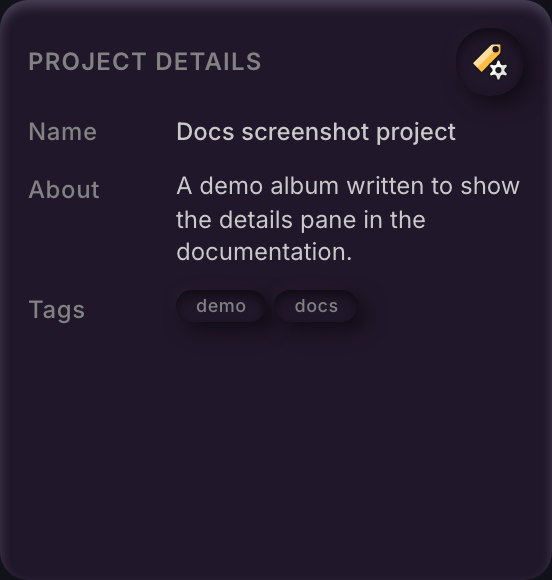
Click the edit icon in the corner to turn About and Tags into an editable textarea and tag field, then Save or Cancel. The name itself isn't editable here — use Rename from the node's context menu instead.
An empty About or Tags shows as a dash. Neither is required: a project works fine without them, but filling them in helps Ilena's suggestions — a work's own tags take priority, and an untagged work falls back to its project's, as described in What suggestions are based on.
Author detailsDirect link to Author details
Click once on your author node — or, in a studio, a member's — to see the author card:
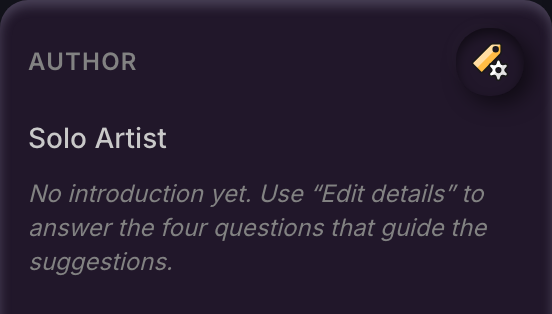
When that author has an answer synthesis — composed from the four questions the signup funnel asks, see Signing up and choosing a plan — it appears here as a short paragraph below the name. If nothing has been composed yet, the card invites you to write one — a line pointing at the edit icon beside it, rather than an empty space that says nothing.
Click the edit icon to revise the four answers behind the synthesis:
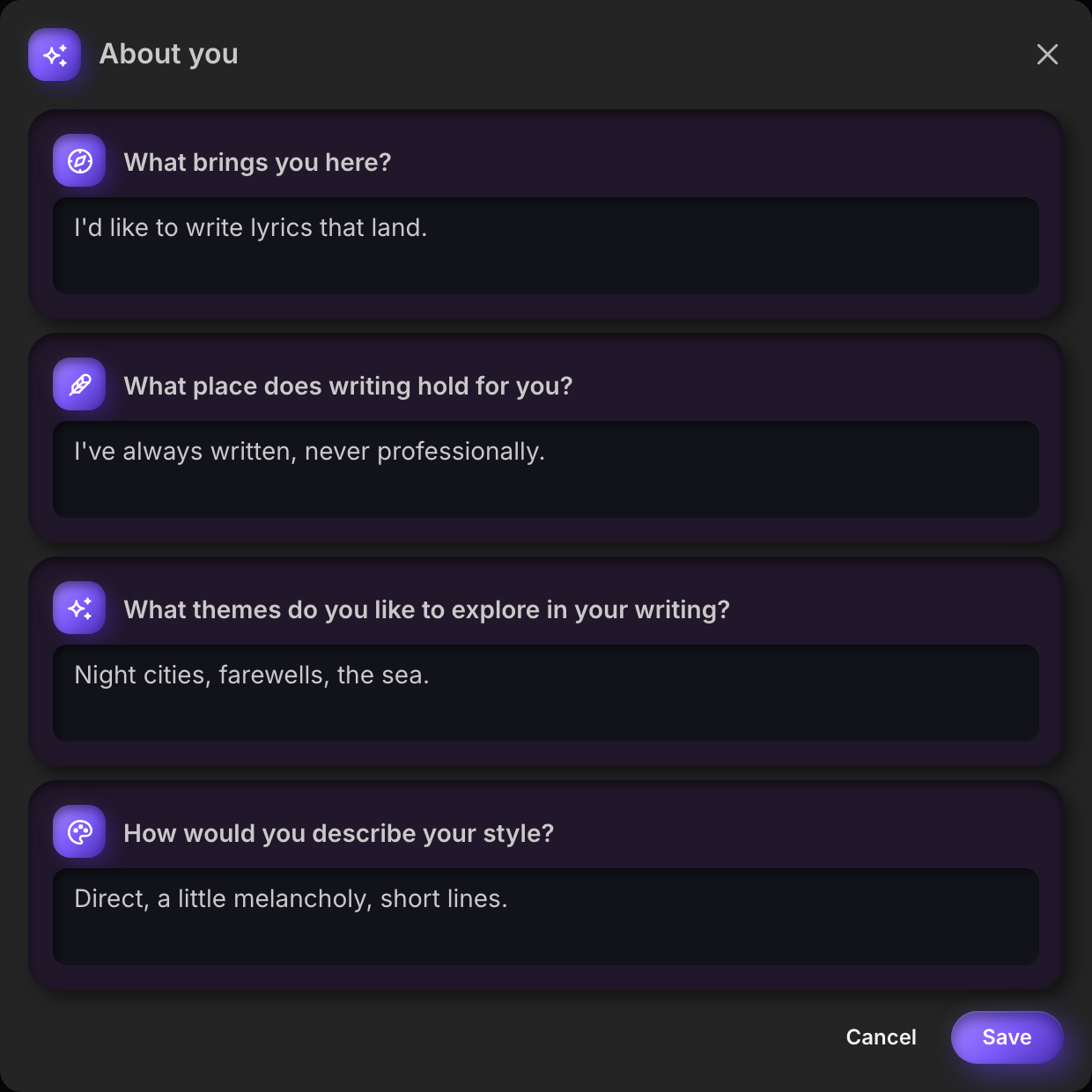
- What brings you here?
- What place does writing hold for you?
- What themes do you like to explore in your writing?
- How would you describe your style?
These are the same four questions asked during signup. Changing an answer here and saving recomposes the synthesis right away — you can't type the synthesis paragraph itself, only the answers it's built from. The synthesis also shapes the suggestions Ilena makes for that author; see What suggestions are based on.
Finding a workDirect link to Finding a work
Once your library grows past what fits on screen, use Find work to search across everything you own.
Bringing in songs you already haveDirect link to Bringing in songs you already have
Your author row and any project row can also receive a drag-and-drop, or the Import files… / Import a folder… entries in their menu — see Import.