Keyboard Shortcuts
Shortcuts use Cmd on macOS and Ctrl on Windows and Linux wherever you see Cmd/Ctrl. The keys in this table are the ones the app is bound to, row for row, in the same order — open Help → Keyboard Shortcuts to see the same list inside Ilena at any time. The two suggestion rows read longer here than they do there, because a table has room to say what a dialog line does not. The dialog grows to fit your window rather than a fixed height, so on a typical desktop window all four categories are visible at once; on a short window it caps itself so the Close button always stays reachable, and everything scrolls into view.
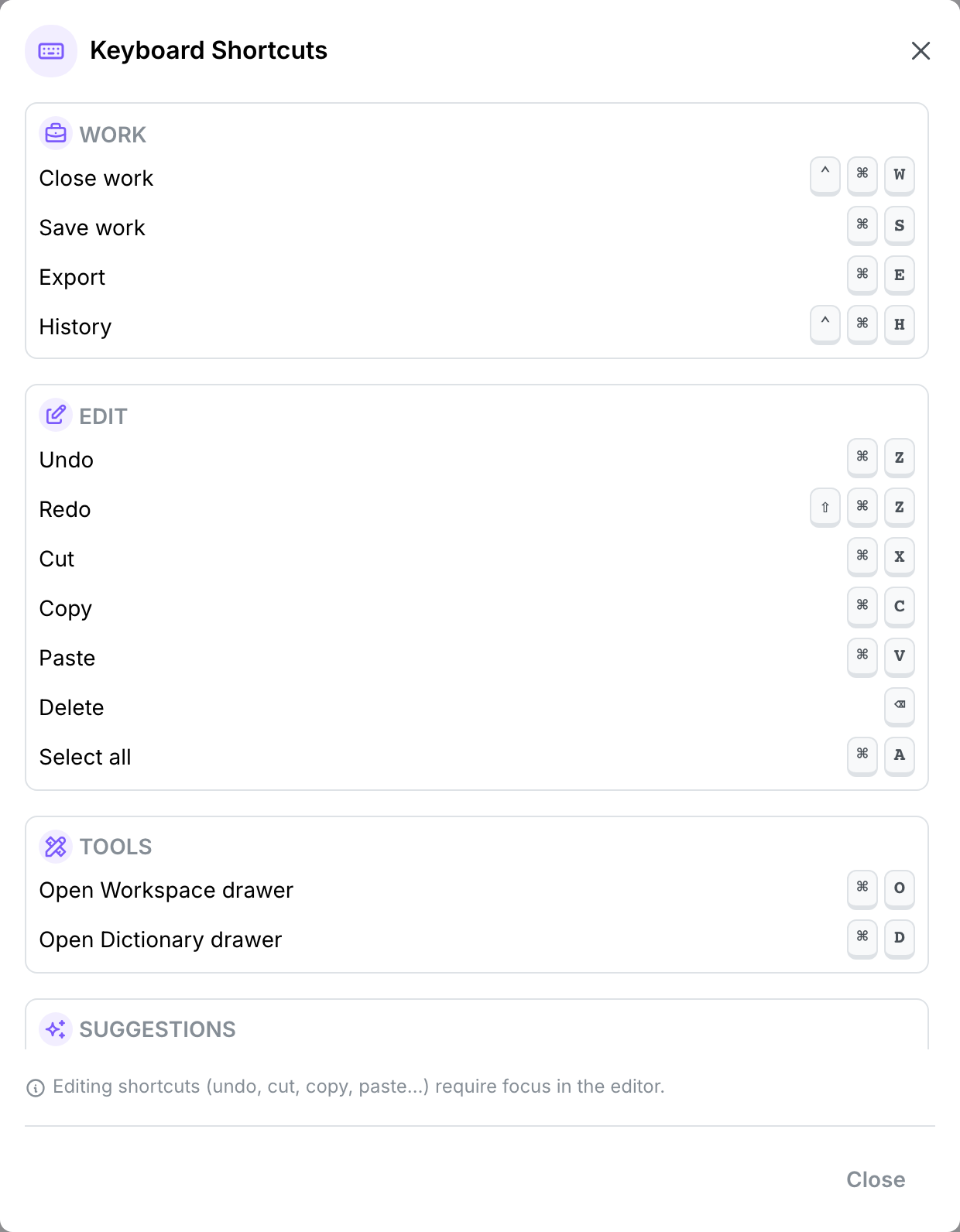
WorkDirect link to Work
| Shortcut | Action |
|---|---|
| Ctrl+Cmd+W · Alt+Shift+W | Close work |
| Cmd/Ctrl+S | Save work |
| Cmd/Ctrl+E | Export as PDF |
| Ctrl+Cmd+H · Alt+Shift+H | History |
These only do something when a work is open. Cmd/Ctrl+E always exports as PDF — the Text and Markdown formats are only reachable from Work → Export. See Export.
Close work and History are the two rows with two chords: the first is macOS, the second Windows and Linux. Every other shortcut on this page is the same key on both, with Cmd standing in for Ctrl. These two are not, because the keys they would otherwise want are already taken — plain Cmd/Ctrl+W closes your browser tab, and Ctrl+H opens its history. A web page cannot take those back.
EditDirect link to Edit
Editing shortcuts require focus in the editor's canvas.
| Shortcut | Action |
|---|---|
| Cmd/Ctrl+Z | Undo |
| Shift+Cmd/Ctrl+Z | Redo |
| Cmd/Ctrl+X | Cut |
| Cmd/Ctrl+C | Copy |
| Cmd/Ctrl+V | Paste |
| ⌫ | Delete |
| Cmd/Ctrl+A | Select all |
ToolsDirect link to Tools
| Shortcut | Action |
|---|---|
| Cmd/Ctrl+O | Open the Workspace drawer |
| Cmd/Ctrl+D | Open the Dictionary drawer |
SuggestionsDirect link to Suggestions
| Shortcut | Action |
|---|---|
| Ctrl+Space | Show suggestions (manual inspiration) |
| Tab | Accept a suggestion — the ghost-text continuation, or the highlighted item in the suggestion list |
| Escape | Dismiss the suggestion list, or clear ghost text |
See Inspiration for how automatic and manual suggestions differ.
Closing dialogsDirect link to Closing dialogs
| Shortcut | Action |
|---|---|
| Escape | Close the active dialog, a panel that opens over your text, or the context menu. |
The Workspace, Dictionary and Ideas basket drawers are the exception: they sit beside your text rather than over it, and Escape leaves them open. Press Cmd/Ctrl+O or Cmd/Ctrl+D a second time, or click the tool in the palette, to close one.
Closing a work safelyDirect link to Closing a work safely
The Close work shortcut runs the exact same confirmation as clicking Work → Close: if the work has unsaved changes, a dialog offers Discard or Save & Close; a clean work closes immediately. The History shortcut opens the version history panel the same way the menu item and the toolbar icon do.
Plain Cmd/Ctrl+W — without the second modifier — still belongs to your browser, and still closes the tab rather than the work; a web page can't take that shortcut over, so this hasn't changed. What has changed is what happens if you do that with unsaved work open: closing the tab, reloading, or navigating away now triggers your browser's own "leave site?" prompt whenever the work is dirty, instead of discarding it silently. That prompt clears itself the moment you save. See Editor → Saving for the in-app confirmation this shortcut shares with the Close menu item.