History & Versions
Every time you save, Ilena keeps a full copy of the work as a new version. There is no limit on the number of versions a work can have, and nothing is ever overwritten.
Version history opens from four places, and they all lead to the same panel:
- Work → History, with a work open.
- The History icon in the toolbar.
- Ctrl+Cmd+H on macOS, Alt+Shift+H on Windows and Linux.
- Right-click a work in the workspace tree and choose History — the only route that works on a work you have not opened.
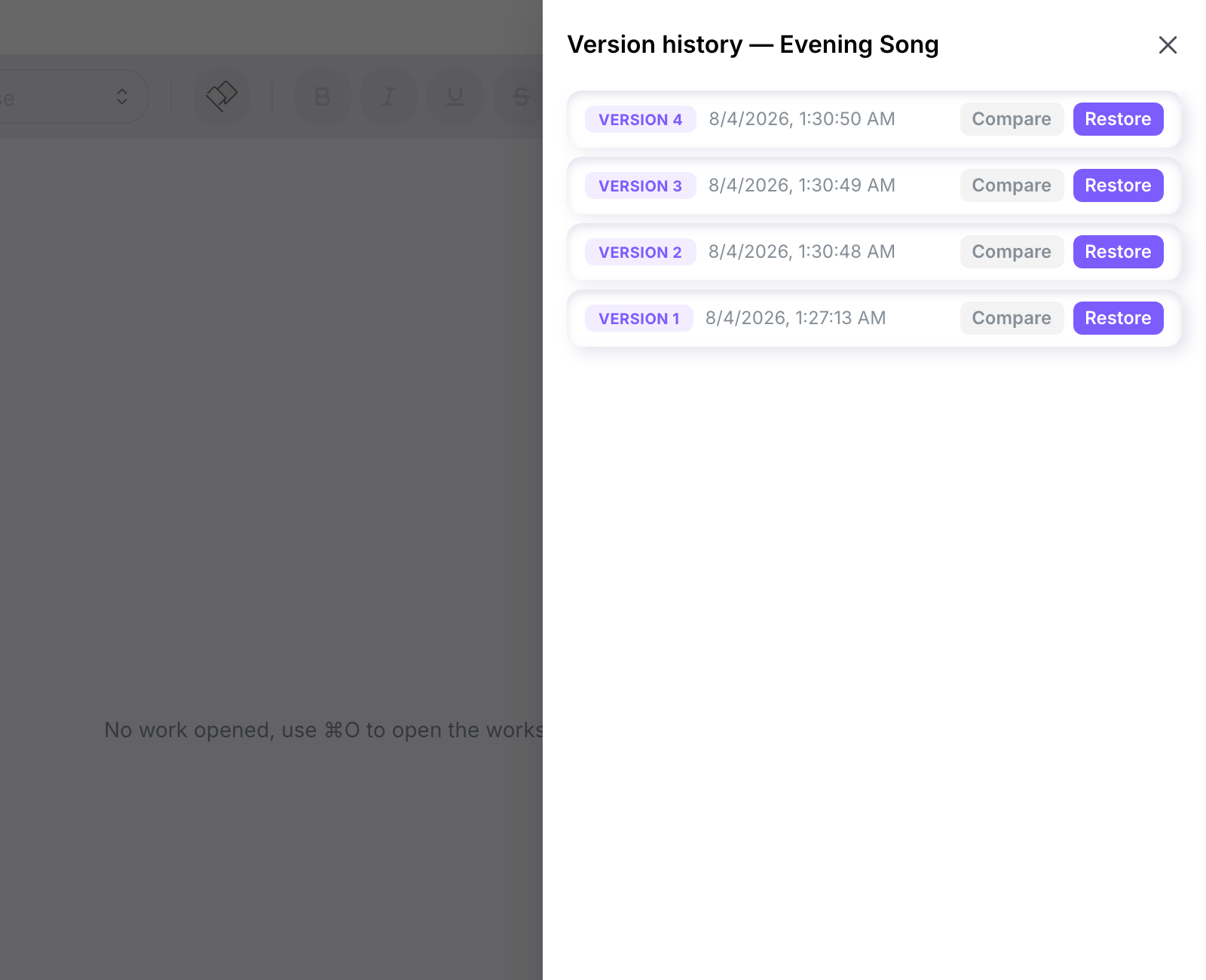
The panel lists every version, newest first, each with its save date and its own View and Restore buttons. Compare appears in place of View on the other versions once one of them is on screen — see Reading a version, and comparing two.
Restoring a versionDirect link to Restoring a version
Restore copies that version's content into a brand-new version, which becomes the current one, and the editor opens on it. It saves for you — there is nothing further to press.
Nothing is overwritten. The version you restored from, and every version saved after it, stay in the list — so restoring is itself undoable by restoring again.
The one thing it does replace is work you have not saved. If the open work has unsaved changes, Ilena asks before writing over them, and you can back out.
Reading a version, and comparing twoDirect link to Reading a version, and comparing two
Click View on a version and its content opens above the list, under Version content. That is often all you want: to read what a version said before deciding whether to restore it.
Once one version is on screen, the button on every other version reads Compare — clicking it puts that version beside the first, under Comparing versions, each labelled with its number:
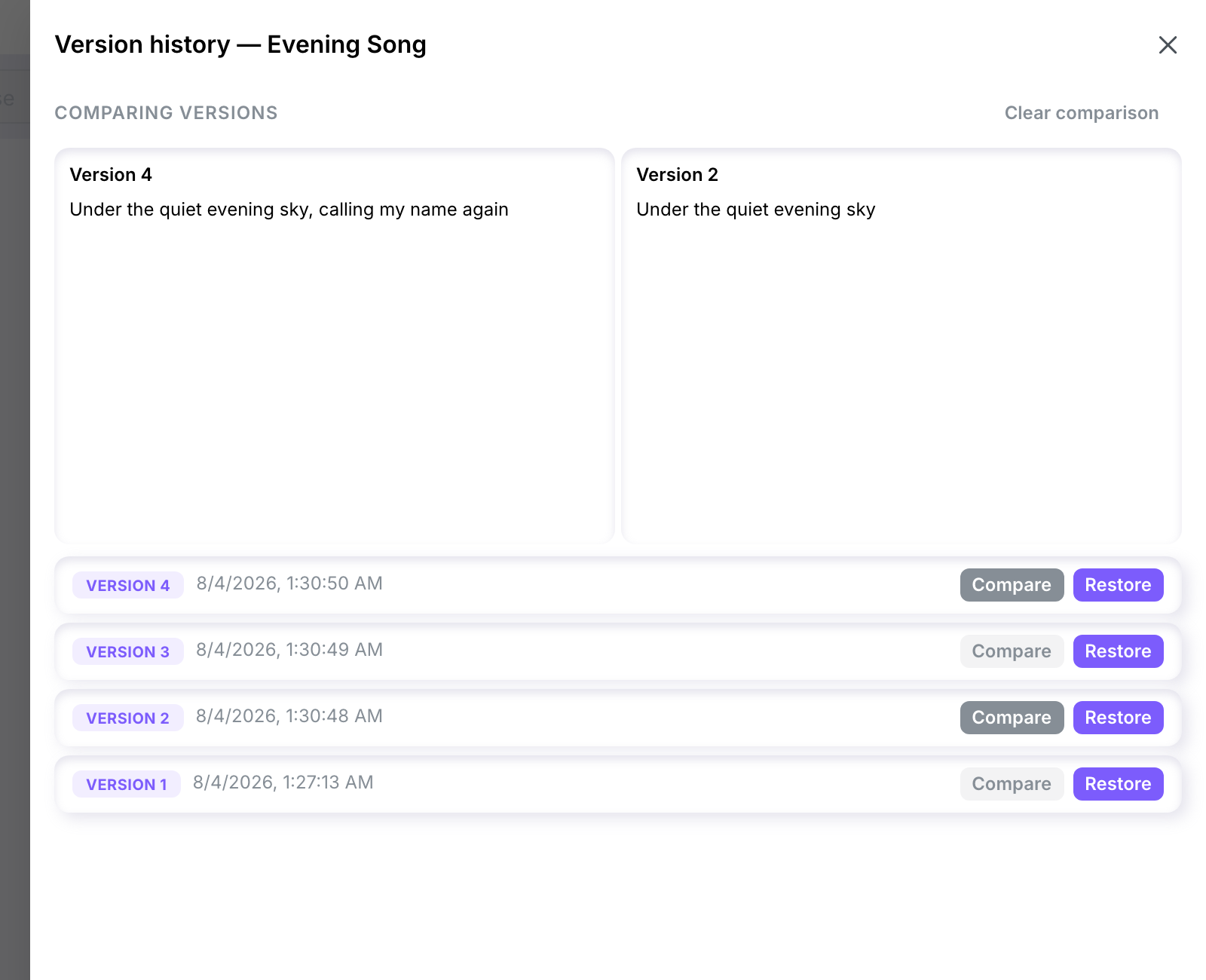
The button on a version that is already on screen reads Remove, and takes it back off. Clear comparison closes the whole panel and goes back to the plain list.
Picking a third version while two are shown replaces the older of the two, so you can walk backwards through the history without clearing anything.
What's stored in a versionDirect link to What's stored in a version
Each version keeps the work's full text content, its line types, the feet count of every verse — including any count you set by hand — and the emotion metadata current at the time of that save. Marks (highlighted text) aren't stored as a separate layer — they travel with the content itself.
What isn't here yetDirect link to What isn't here yet
- Named checkpoints — tagging a specific version so it's easier to find later.
- Deleting old versions — every save stays forever today. If you need a version purged for a sensitive work, contact support.