First steps
This page gets you from no account to a saved first line, in the editor at www.ilena.app/app.
1. Get an account
If you don't have one yet, go to www.ilena.app and click Get started. The signup funnel walks you through choosing the Solo plan, paying through Stripe Checkout, and verifying your email — click the link in the verification email to activate your account.
Your password must be 8–20 characters, with at least one uppercase letter, one lowercase letter, one digit, and one special character.
2. Sign in
At the sign-in page, enter your email and password and submit. If you've forgotten your password, use the Forgot password? link on the same page — it's self-serve, no need to contact support.
3. Open your workspace
Once signed in you land in the editor with no work open. Open the workspace drawer with Cmd/Ctrl+O, or click Workspace in the left tool palette. Your tree starts with an author node named for you:
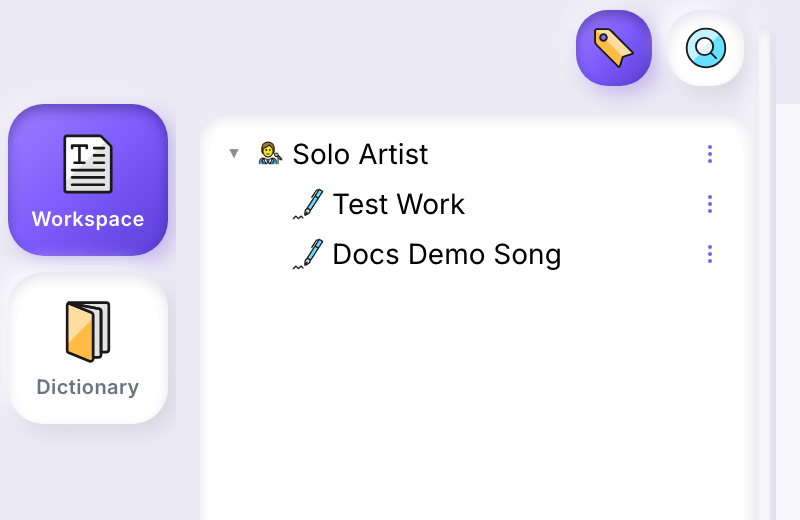
From here you can create a Project to group related works, or a Work directly. To learn more about organizing the tree, see Workspace.
4. Create your first work
Right-click your author node (or use its ⋮ menu) and choose New Work. A name field opens right in the tree — type a title and press Enter:
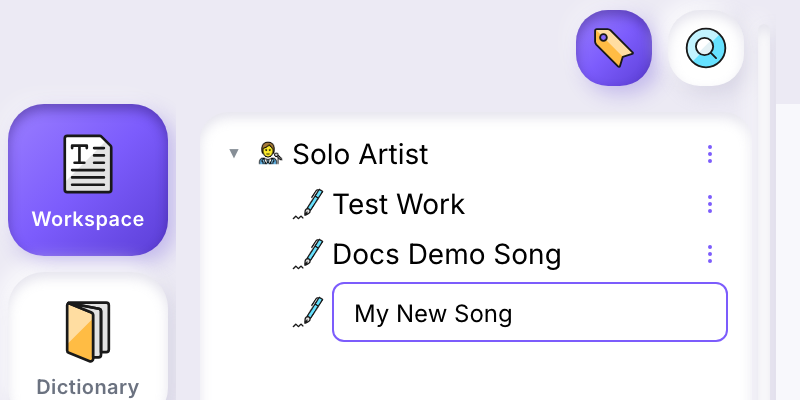
The work is created but not yet open. Double-click it in the tree to open it in the editor.
5. Write your first lines
The canvas starts on a verse line — just start typing. To learn what surrounds the canvas as you write (the menus, the toolbar, the gutters), see The editor.
6. Save your work
Ilena does not autosave — you decide when a version is committed.
- Press Cmd/Ctrl+S, or
- Click Work → Save, or
- Click the save button in the toolbar.
A confirmation appears when the save succeeds. While you have unsaved
changes, the browser tab title is prefixed with *. If you try to close a
work with unsaved changes, Ilena asks whether to save and close, discard, or
cancel.
Every save creates a new version — see History & Versions to browse and restore past ones.
What next?
- Turn on Inspiration for line suggestions as you write.
- Learn the keyboard shortcuts.
- Look up a word in the Dictionary.