Workspace
The workspace drawer — opened with Cmd/Ctrl+O, or by clicking Workspace in the left tool palette — is where you organize your works and get to them.
The tree
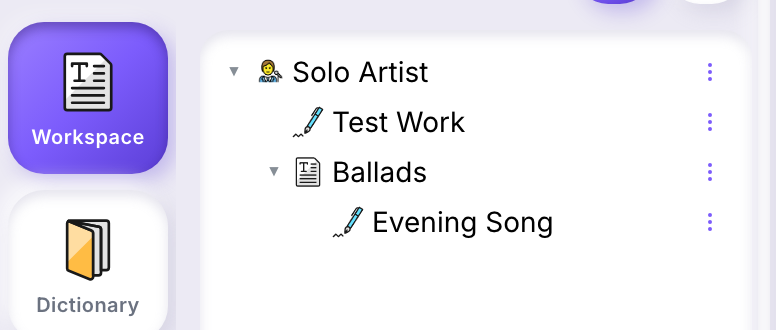
At the top of the tree is your author node, named after you. Under it you create:
- Projects — folders. Use them to group works by album, era, client, or any way that fits how you think. A project can hold works and other projects, nested as deep as you need.
- Works — the lyric documents you write in the editor. A work is always a leaf; it can't hold anything else.
Creating a project or a work
- Right-click a node that can hold children — your author node, or any project.
- Choose New Project or New Work.
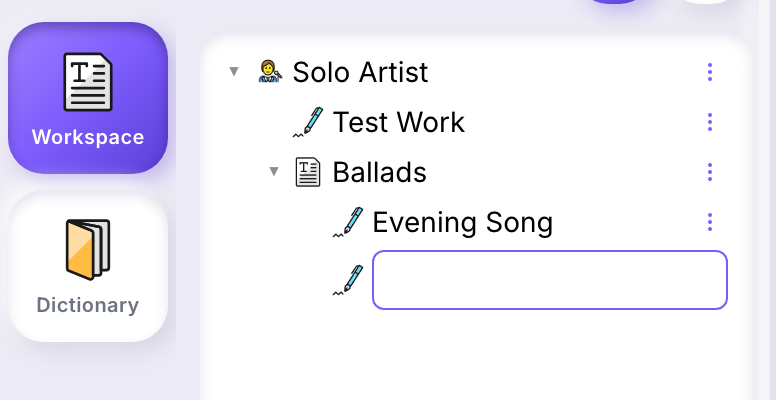
A new row opens right in the tree, ready to name.
- Type a name.
- Press Enter to confirm, or Escape to cancel.
There's no dialog and no language picker at this step — a new work is created in English by default. To change its language, tags, or name afterward, see work details below.
Renaming
Right-click a node and choose Rename. The row opens for editing the same way it does when you create one — type the new name and press Enter, or Escape to cancel. If the rename fails (for example, a network error), the old name is restored.
Deleting
Right-click a node and choose Delete, then confirm in the dialog that appears — deleting cannot be undone.
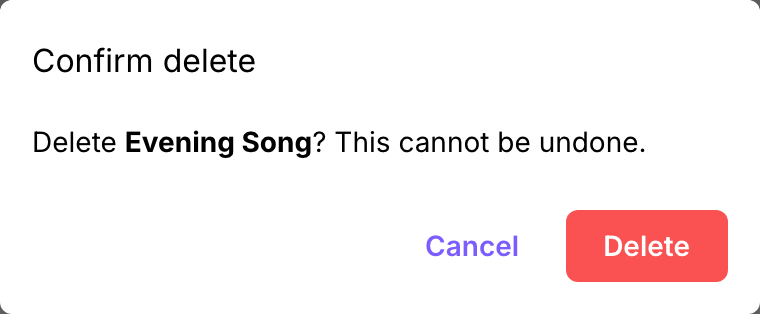
A few rules, visible directly in the menu — Delete is greyed out when it doesn't apply:
- A work can always be deleted.
- A project must be empty first — its Delete is disabled while it still holds anything.
- Your author node — the root of your tree — can't be deleted at all.
Opening a work
Double-click a work in the tree. Its content loads into the editor.
Node menus
What you see on right-click depends on the node:
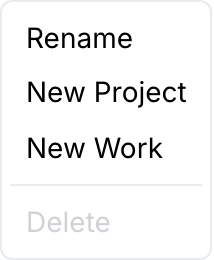
- Your author node: Rename, New Project, New Work, Delete (always disabled).
- A project: New Work, New Project, Rename, Delete (disabled while it has children).
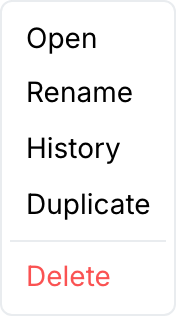
- A work: Open, Rename, History, Duplicate, Delete. History opens the version-comparison drawer for that work — see History & Versions. Duplicate makes an independent copy — see Duplicating below.
Duplicating
Right-click a work and choose Duplicate. A new work appears in the tree named "‹name› (copy)", holding its own copy of the original's content at the moment you duplicated it. From then on the two are unrelated: editing and saving one leaves the other exactly as it was. Duplicate isn't offered on projects or on your author node — only on works.
Work details
Click once on a work (rather than double-clicking) to select it without opening it. A Work details card appears below the tree:
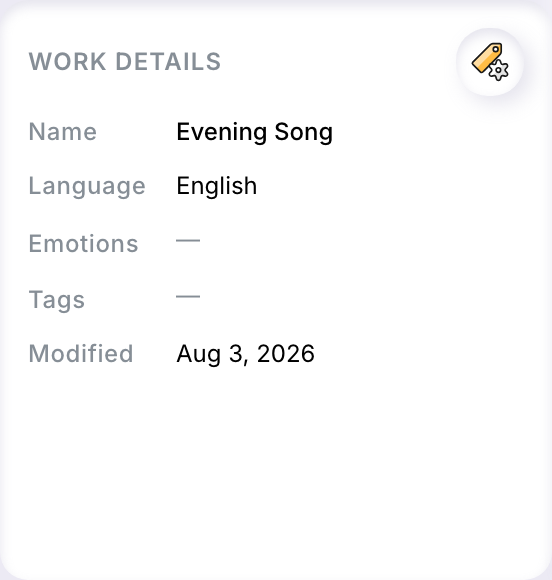
- Name, Language, Tags — set when the work was created, editable afterward.
- Emotions — shown as chips; they come from analyzing the work's content and are recalculated on save, not typed in directly.
- Modified — the date of the work's last save.
Selecting a project or your author node instead shows just its type and name — there's no editable card for those.
Loading a work's details can take a moment, especially if it isn't the one currently open in the editor. If it fails to load, a notification says so; click away and reselect the work to try again.
Editing details
Click the edit icon in the corner of the card to turn it into a form:
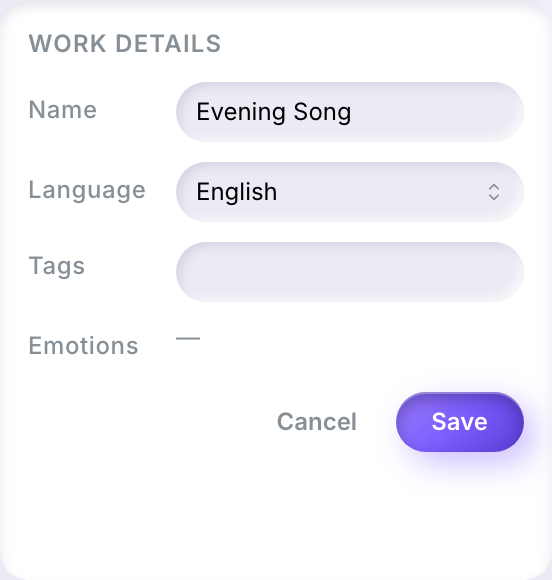
Change the Name, Language (English, French, or Spanish), or Tags, then Save or Cancel. Emotions aren't part of this form — they update on their own as you write and save the work's content.
Finding a work
Once your library grows past what fits on screen, use Find work to search across everything you own.