Finding a work
Once your workspace holds more than a handful of works, scrolling the tree stops being the fastest way to get to one. Find work searches your whole library at once.
Opening it
With the workspace drawer open (Cmd/Ctrl+O), click the magnifying-glass icon at the top of the drawer, next to the tab that shows the tree.
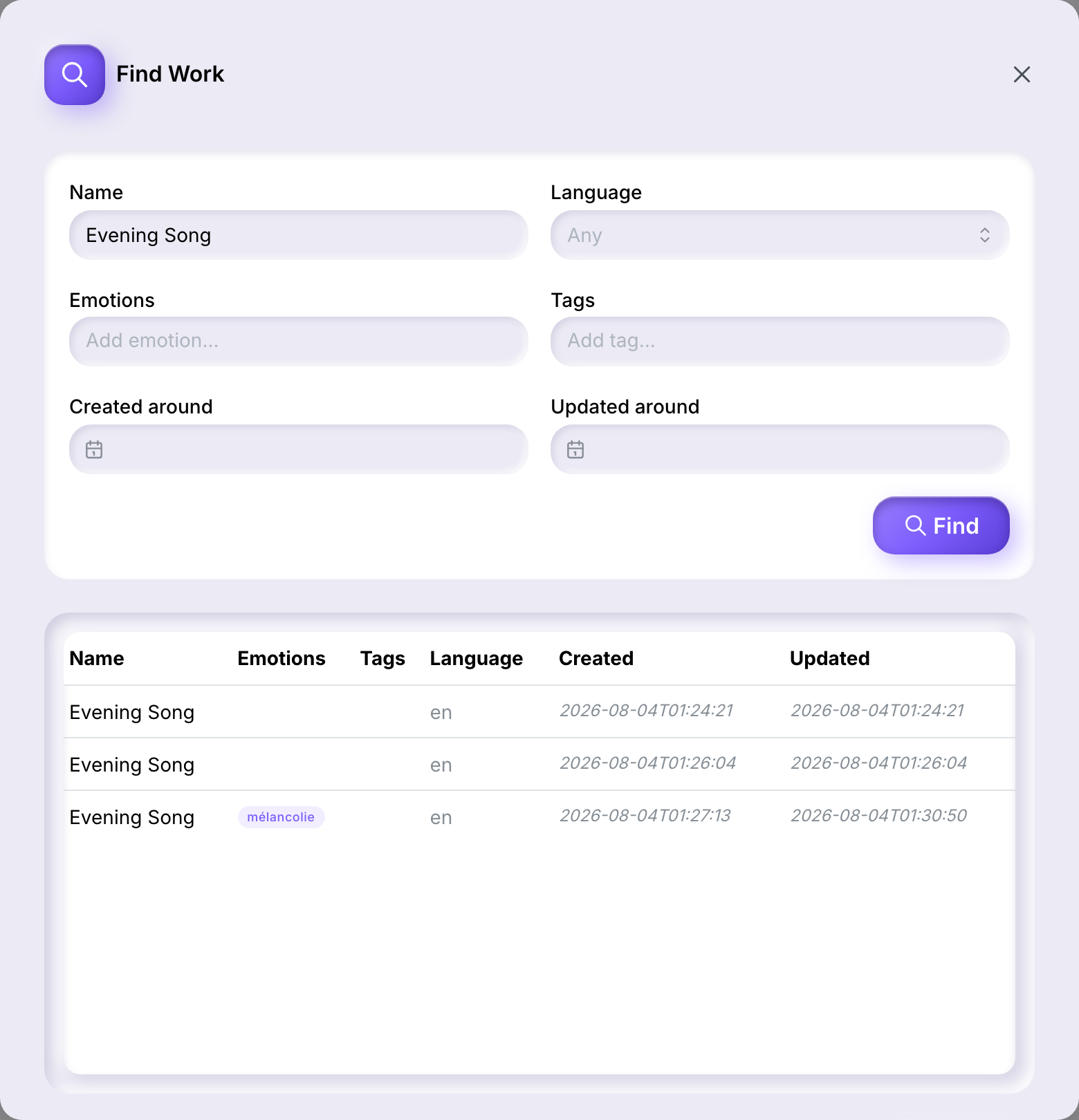
Filtering
Fill in any combination of:
- Name — matches works whose name contains what you type.
- Language — restrict to English, French, or Spanish, or leave it on Any.
- Emotions — filter by one or more of the emotions attached to a work.
- Tags — filter by one or more tags.
- Created around / Updated around — narrow by date.
Click Find. You don't have to fill in every field — an empty field just isn't used as a filter.
Reading the results
Results appear in a table below the filters, with a column for each of Name, Emotions, Tags, Language, Created, and Updated.
Opening a result
Click a row to select it, then click Open — or just double-click the row. Either way, the work loads into the editor and the dialog closes.