Signing in, and password recovery
This page covers signing in at www.ilena.app/app/login, and what to do if you've forgotten your password.
Signing in
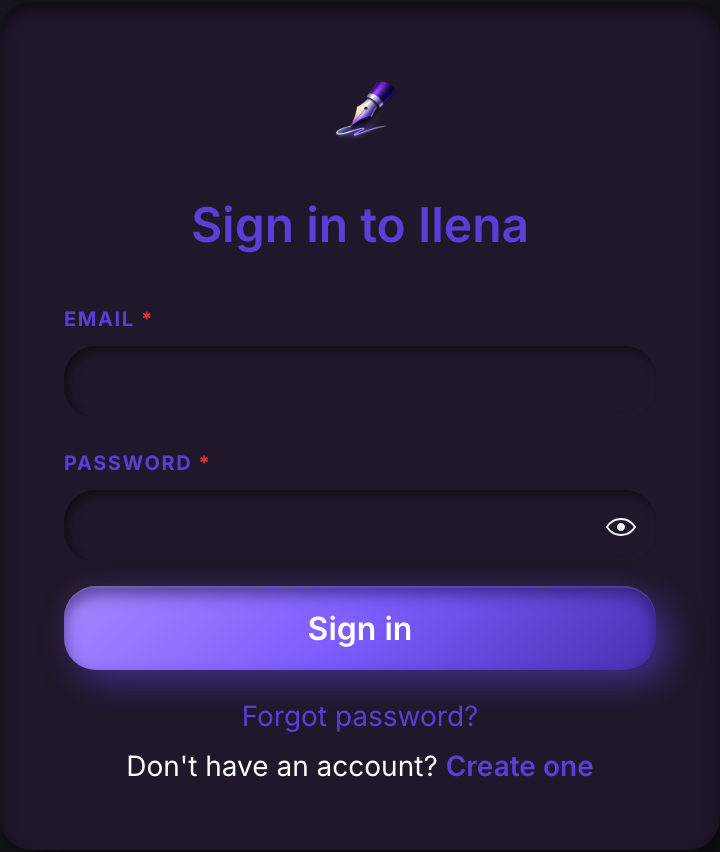
Enter your email and password and submit. A few things you might see instead of landing in the editor:
- Invalid credentials — the email or password doesn't match. Double check both, and mind extra spaces.
- Your email is not verified yet — you created an account but never clicked the verification link. Check your inbox for it; if it's gone, the signup flow's email step offers a resend, or contact [email protected].
- A connection or server error — try again in a moment.
Don't have an account yet? Use Create one, which leads to the signup flow.
Forgotten your password?
This is self-serve — no need to contact support. From the sign-in page, click Forgot password?:
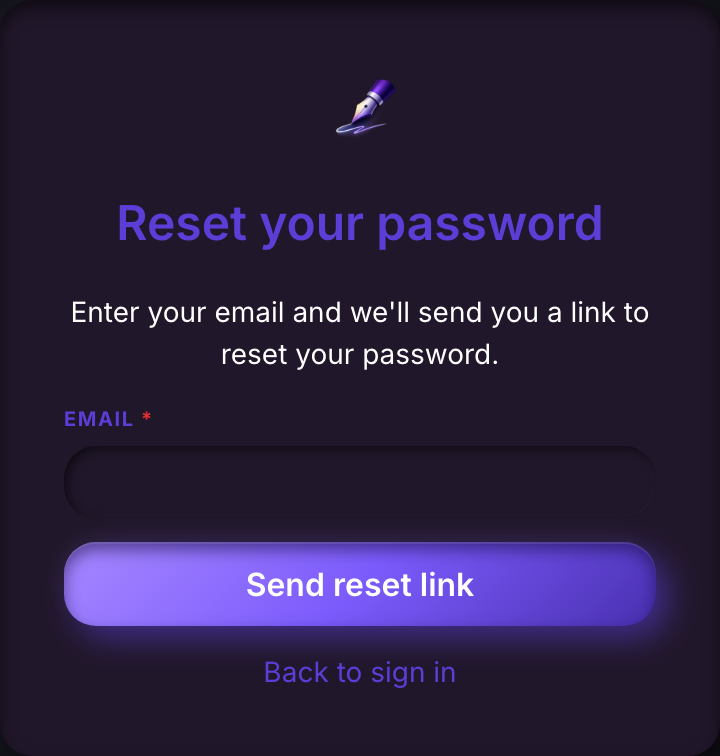
Enter your email and submit. Ilena always shows the same confirmation — "If an account exists for that email, a reset link is on its way" — whether or not that address has an account, so this step never confirms or denies who's registered.
If a matching account exists, you'll receive an email with a reset link. Opening it brings you to a page to choose a new password:
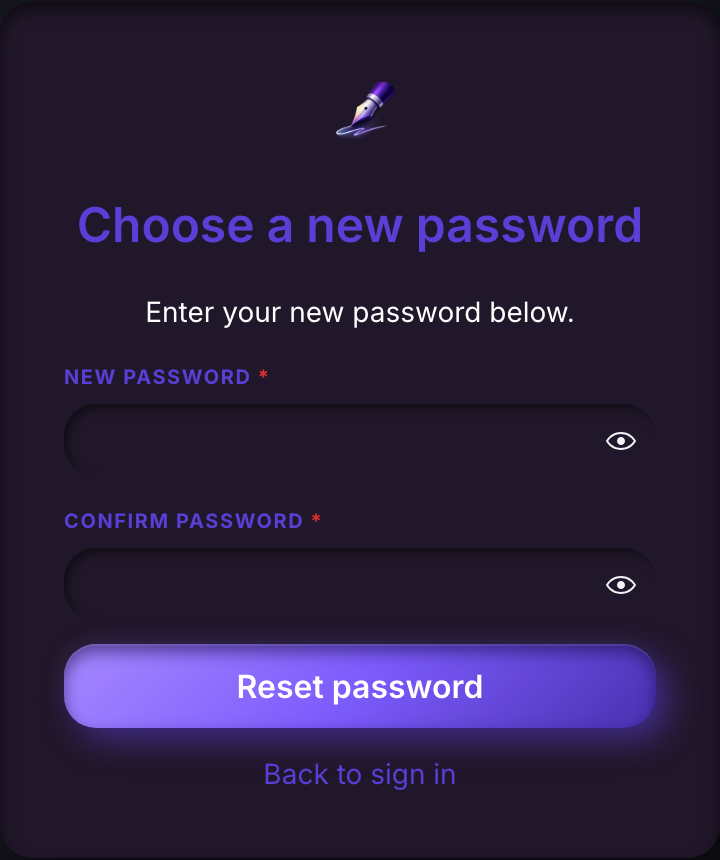
The same requirements apply as at signup: 8–20 characters, with an uppercase letter, a lowercase letter, a digit, and a special character, and both fields must match. Submitting takes you back to the sign-in page, ready to use your new password.
If the link is missing its token, invalid, or expired, the page tells you so and offers to request a new one — reset links don't last forever, so if you waited a while, ask for a fresh link rather than retrying the old one.