Open your account pageOpen your account page
- Signed in on the Ilena site, open the Application menu in the header.
- Select Account.
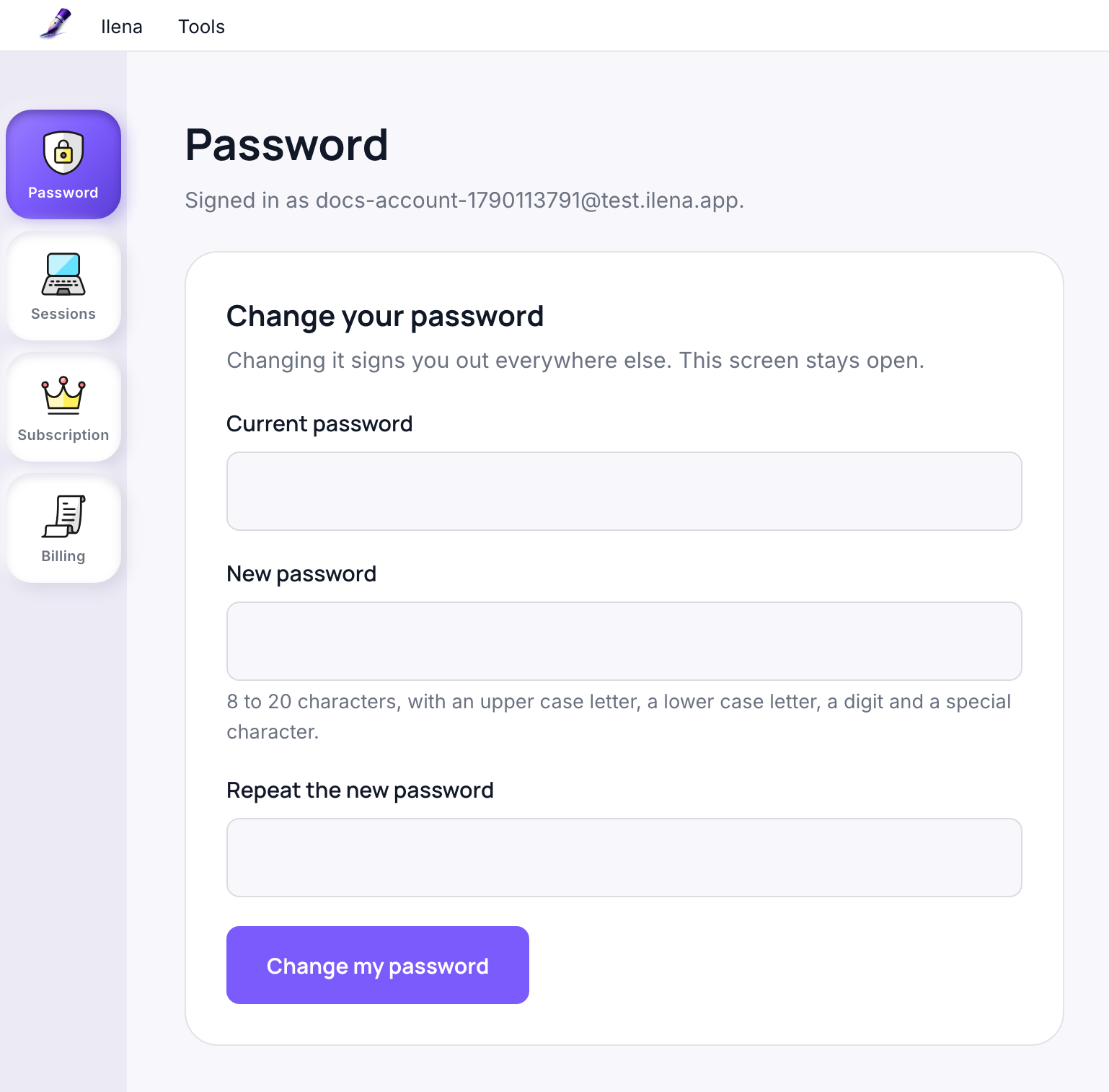
The page shows the address you are signed in with and four sections: Password, Sessions, Subscription and Billing. The column on the left moves between them, and the Tools menu at the top of the page lists the same four. The account page also works on a phone-sized screen.
Its Ilena menu opens Settings, described in Change the editor’s settings.
Change your passwordChange your password
- On your account page, open Password.
- Enter your Current password, then your new password in New password and again in Repeat the new password.
- Select Change my password.
The page confirms: Your password has been changed. Every other session has been signed out; this one is still open. The new password needs 8 to 20 characters, with an upper case letter, a lower case letter, a digit and a special character. If the first field is wrong, the page says That is not your current password. Other refusals are in Fix common problems.
If you no longer know your password, reset it from the sign-in page instead: see Sign in, sign out and reset your password.
See where you are signed inSee where you are signed in
Each time you sign in on a device, Ilena opens a session. Open Sessions to see the ones still active and end any of them except the one you are using. The most recent session comes first. Each entry shows:
- the browser and the system it runs on, for example Chrome on macOS, with this device next to the session you are using;
- when the session started and when it was last used, for example Started Sep 22, 2026, 11:10 PM · last used Sep 22, 2026, 11:10 PM;
- the address it comes from, or from an unknown address. The page describes the address as a rough clue about where a session comes from, not a place.
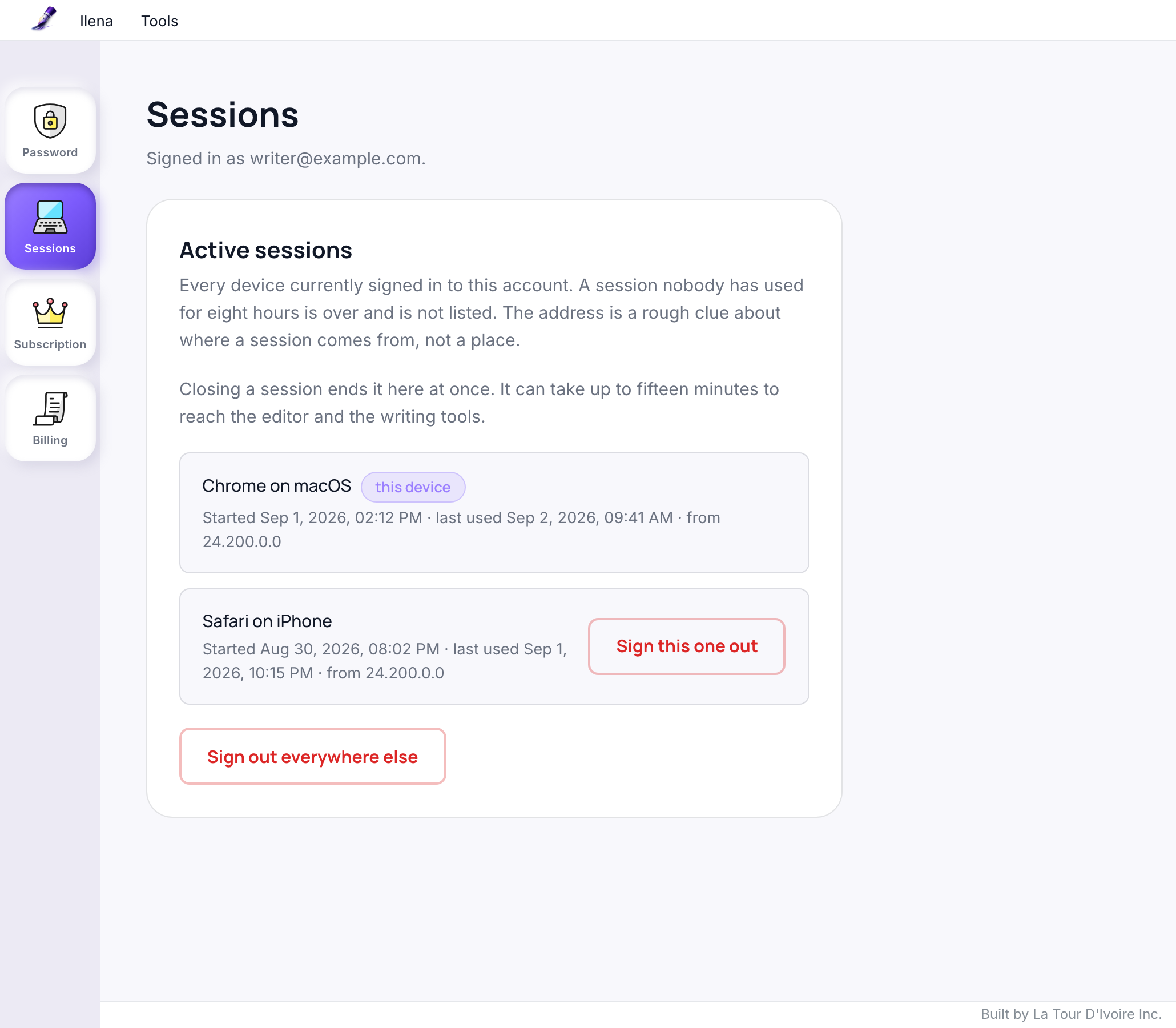
The page also states that a session nobody has used for eight hours is over and is no longer listed.
End one sessionEnd one session
- In Sessions, on the entry you want to end, select Sign this one out.
The page shows That session has been signed out. and the entry leaves the list. The session you are using has no such button.
End every other sessionEnd every other session
- In Sessions, select Sign out everywhere else, below the list.
- Ilena asks you to confirm and gives the number of sessions concerned. Select Sign out everywhere else again, or Keep them to change nothing.
Only the session you are using remains, and the page gives the number of sessions signed out. The button appears only while other sessions exist.
What happens on the other deviceWhat happens on the other device
On a device whose session you ended, the account page asks to sign in again. The page warns: Closing a session ends it here at once. It can take up to fifteen minutes to reach the editor and the writing tools. The editor may therefore keep working on that device for a while.
Read your subscriptionRead your subscription
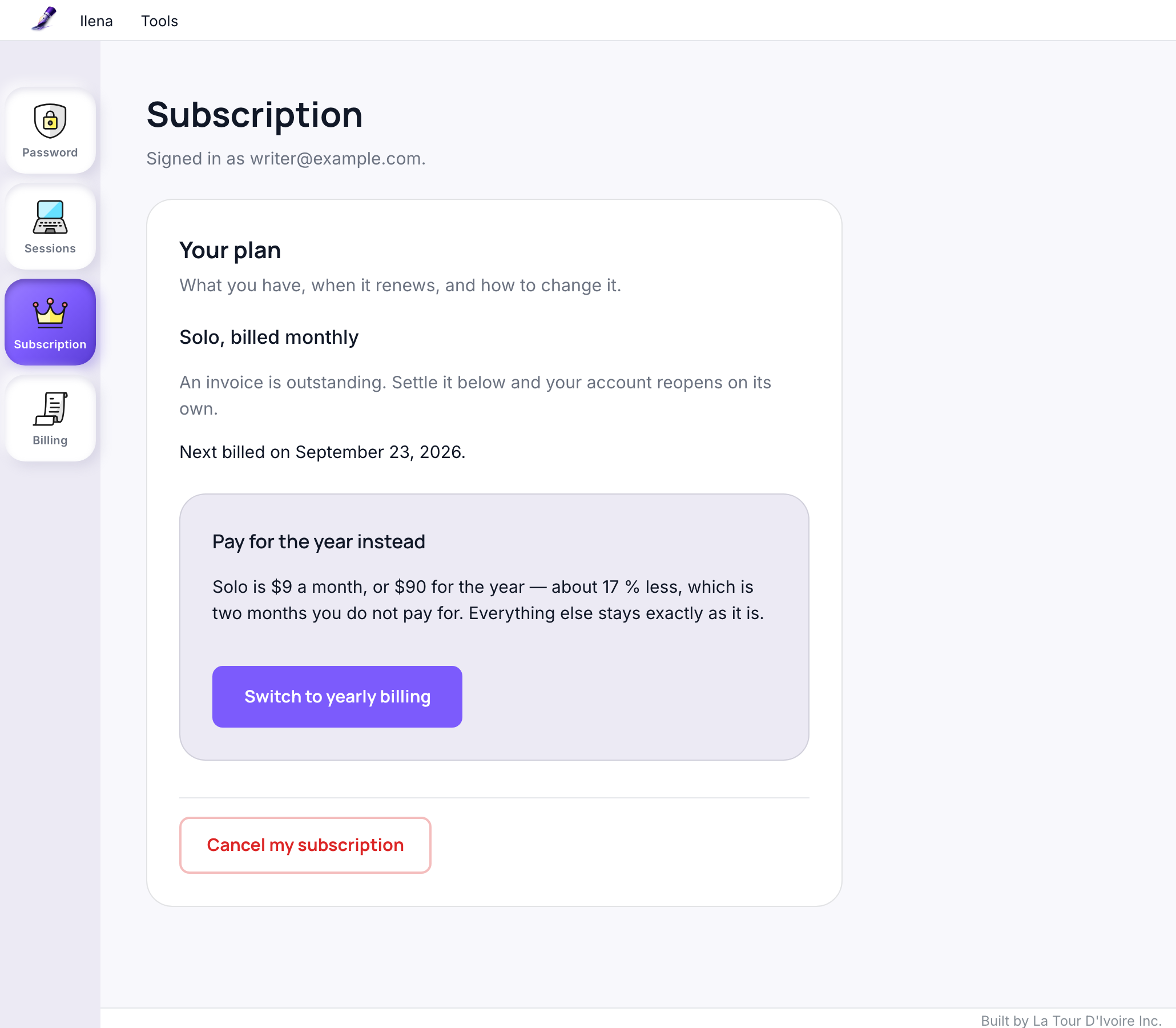
Subscription states your plan and your billing cycle in words, such as Solo, billed yearly, followed by the date of your next payment. During a free trial it adds Your free trial is running. Your subscription starts when it ends.
Cancel your subscription, or keep itCancel your subscription, or keep it
- In Subscription, select Cancel my subscription.
- Ilena asks Cancel at the end of the current period? Select Cancel my subscription to confirm, or Keep it to change nothing.
To change your mind, select Keep my subscription. The section shows your next billing date again, with Your subscription will continue. Nothing stops on that date any more.
Update your payment method and see your invoicesUpdate your payment method and see your invoices
Billing shows your payment method, for example Visa ···· 4242. Update opens Stripe’s billing page in a new tab, where you change it.
Under Invoices, each invoice has its date, total and status. View opens it on Stripe, in a new tab.
The section also states: If a payment failed, your account is frozen and the editor stays closed until the outstanding invoice is settled. You can settle it here.